¶ Sharing data within your group
- Select one or multiple objects (images, datasets, projects...)
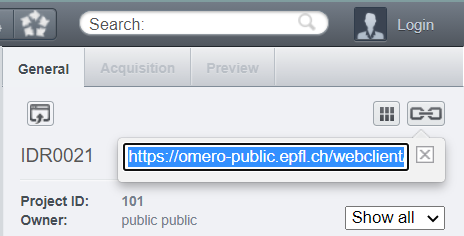
- On the right panel of OMERO-web, hit the
create link buttonto generate one URL for all the selected objects. - Copy the URL
- Paste the URL in an email, SOPs, presentation... and other lab members will have access to the data.
¶ Sharing data between groups
There is no way to share only one dataset / project / image between two different groups. However, one solution could be to create a new group, named group1_group2, where you can move the data that should be shared with group2. In the new group, you'll have the possibility to add only users who should have access to the data.
Please contact the OMERO team if you are interested by this solution.
¶ Sharing data with externs
As our OMERO server is behind the school VPN, external people (i.e. anyone without valid gaspar credentials) cannot have access to the OMERO server directly.
One solution that can be used to share data externally is to use the script Download protected zip, available on the OMERO.server, under scripts -> utils scripts.
This script creates a password-protected zip of the selected OMERO objects, and saves the zip at this address: https://sv-open.epfl.ch/ptbiop-public/omero/, inside a folder with the name of your OMERO group.
The SV-OPEN service, provided by the SV-IT, shares any folder/file publicly, which means that the zip file can be downloaded by anyone who has the link. It's therefore important that you provide a strong password to avoid any data leak issues.
Data accessible under https://sv-open.epfl.ch/ptbiop-public/omero/ are kept during one week before being automatically deleted.
Once the zip is accessible under the SV-OPEN folder, you can simply share the zip file link (ex: https://sv-open.epfl.ch/ptbiop-public/omero/biop/dummy260327.zip)
File names within the zip can be viewed without any password
¶ Script usage
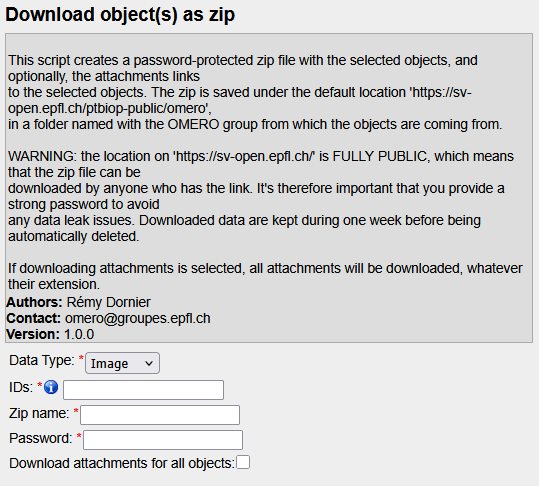
- Firsl of all, select, in the webclient, all the objects to zip. Available objects are Image, Dataset, Project, Screen, Plate
- Open the script clicking on
Scripts -> Utils scripts -> Download protected zip
The
Data TypeandIDsfields are automatically filled.
- Give a name to your zip file
- Enter a password to protect the zip file.
IMPOTANT: your password has to be strong enough ! This password should be shared with the externals persons who requested the access to the zip.
- If you also have attachments (like pdf, protocols, results...) which should be included in the zip file, check the box to also downalod them.
If downloading attachments is selected, all attachments will be downloaded, whatever their extension. If they are some of them that you don't want to share, unlink them from OMERO before running the script.
-
Run the script
-
The zip file will be externally accessible in
https://sv-open.epfl.ch/ptbiop-public/omero/omero_group_name/. Internally, you can also have access to it from\\sv-nas1.rcp.epfl.ch\ptbiop-raw\SV-OPEN\ptbiop-public\omero\omero_group_nameand can also manually delete the files whenever you want
If you have access to
\\sv-nas1.rcp.epfl.ch\ptbiop-raw\SV-OPEN\ptbiop-public\omero, be careful to delete / add data from the right group !
If you think that this solution is not adapted, you can manually download the images from OMERO.insight client.